
Every Gen AI Image Generator and Photo Editor
Create a product image, illustration, or video opening frame from a text prompt. Use a reference photo to change the background or lighting, and choose 1K, 2K, or 4K output.
Prompt Library
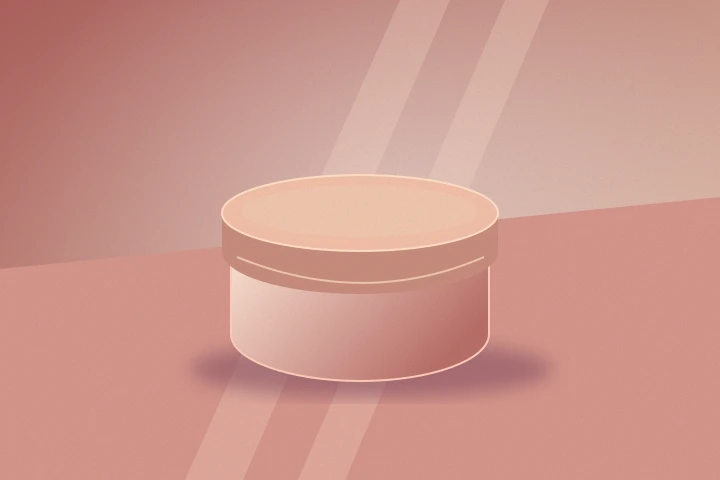
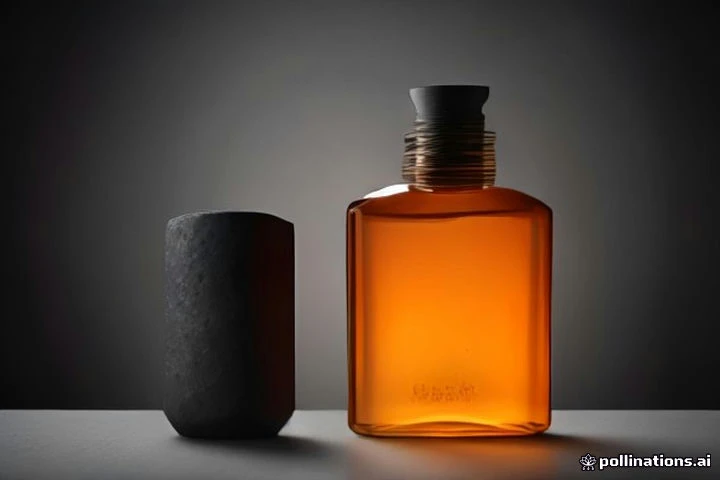
Create From Text or Edit a Reference Image
Create an image from a prompt or edit an existing photo. Choose the framing and resolution before you generate.
Text to Image From a Written Brief
Describe the subject, camera angle, and lighting. For a product still, include the surface and the side where you need room for a headline. MiniMax H3 Image supports 1K, 2K, and 4K output.
Edit a Photo With Reference Images
Choose Edit Image and add a reference link. Specify which details to keep and which to change. If you use several sources, refer to them in order with tags such as <Picture 1>.
Make an Opening Frame for Image to Video
Choose a crop that matches the video. Leave space in the direction of the planned motion, then use the result as the starting image in the Video tool.
AI Image Generator FAQ
Can I start without a reference photo?
Yes. Choose Text to Image, describe the subject and lighting, and pick an aspect ratio. For a product hero image, specify where you want clear space for a headline or button.
How do I edit a product photo?
Choose Edit Image and provide an HTTPS link from a configured media host. Specify what should change, such as the backdrop or light, and what should stay, such as the product shape and label. Check these details in the result before publishing.
Which resolutions and file format can I use?
MiniMax H3 Image supports 1K, 2K, and 4K. This workspace requests PNG output. Choose a square, landscape, or portrait ratio that matches the placement of the final image.