EveryGen AI Plans and Credits
Story templates and sample films are available to everyone. Paid accounts can plan a film and see its video credit quote before starting generation.
Compare plans and credits EverygenAIAI DirectorSign In
Plan a multi-scene film with the AI Director. Refine the storyboard in chat, then generate the shots and download the finished video.
Short animated stories about friendship and adventure.
Start with an idea or paste a brief. The AI Director helps you plan a multi-scene video with a consistent cast and sound direction.
Review the storyboard before generation. Once you approve it, Studio generates the shots and assembles them into one MP4.
How it works
Four steps from a first idea to a finished film.
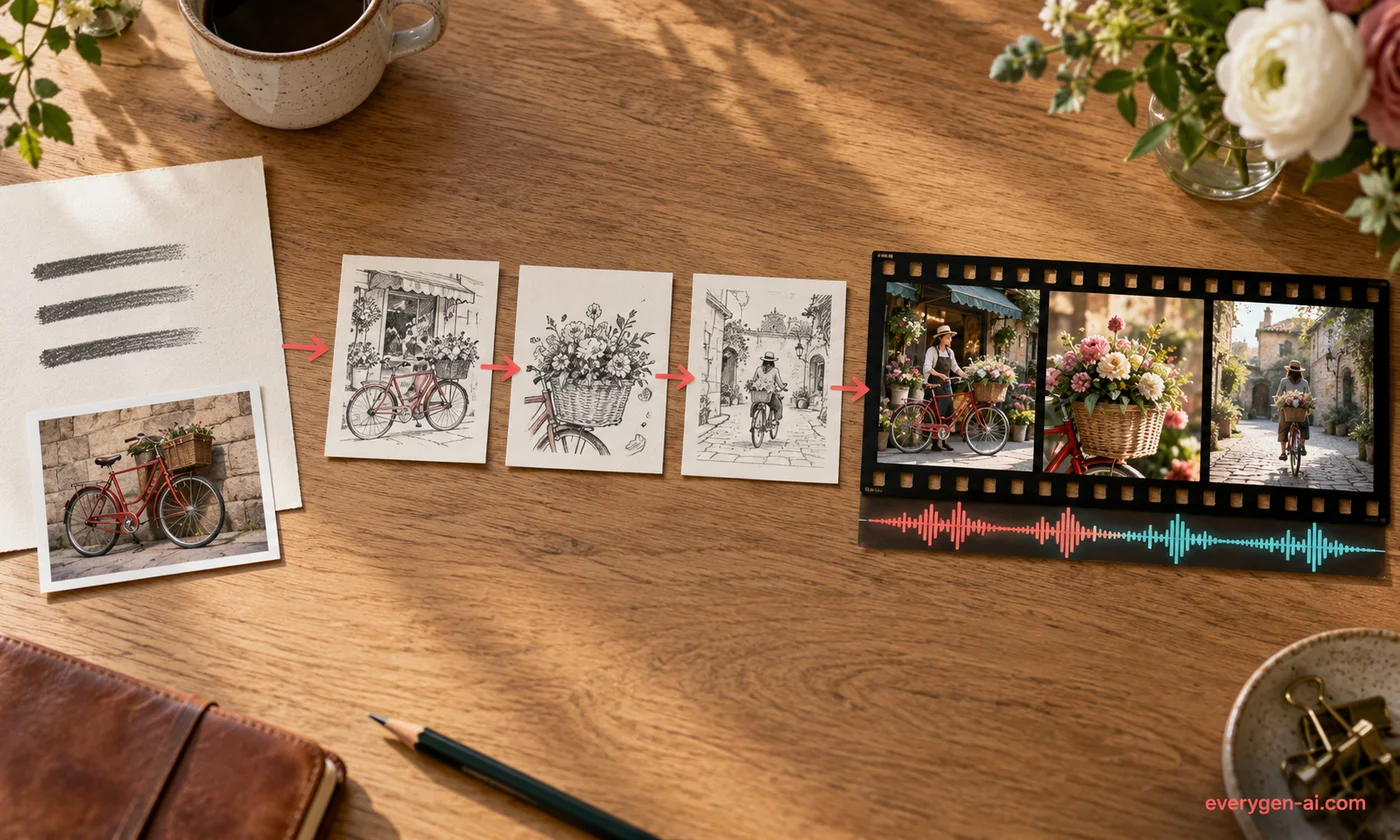
Describe your story and choose the aspect ratio and resolution. Put the target length and any important character or product details in the brief.
The director drafts the storyboard. Review each shot and ask for changes before confirming the credit quote.
Approve the storyboard to generate the shots. Studio assembles them in order and preserves each shot’s audio.
Watch the complete film, download the MP4, or return to your past projects from History.
Plan the narrative, preserve continuity, and revise one scene at a time.
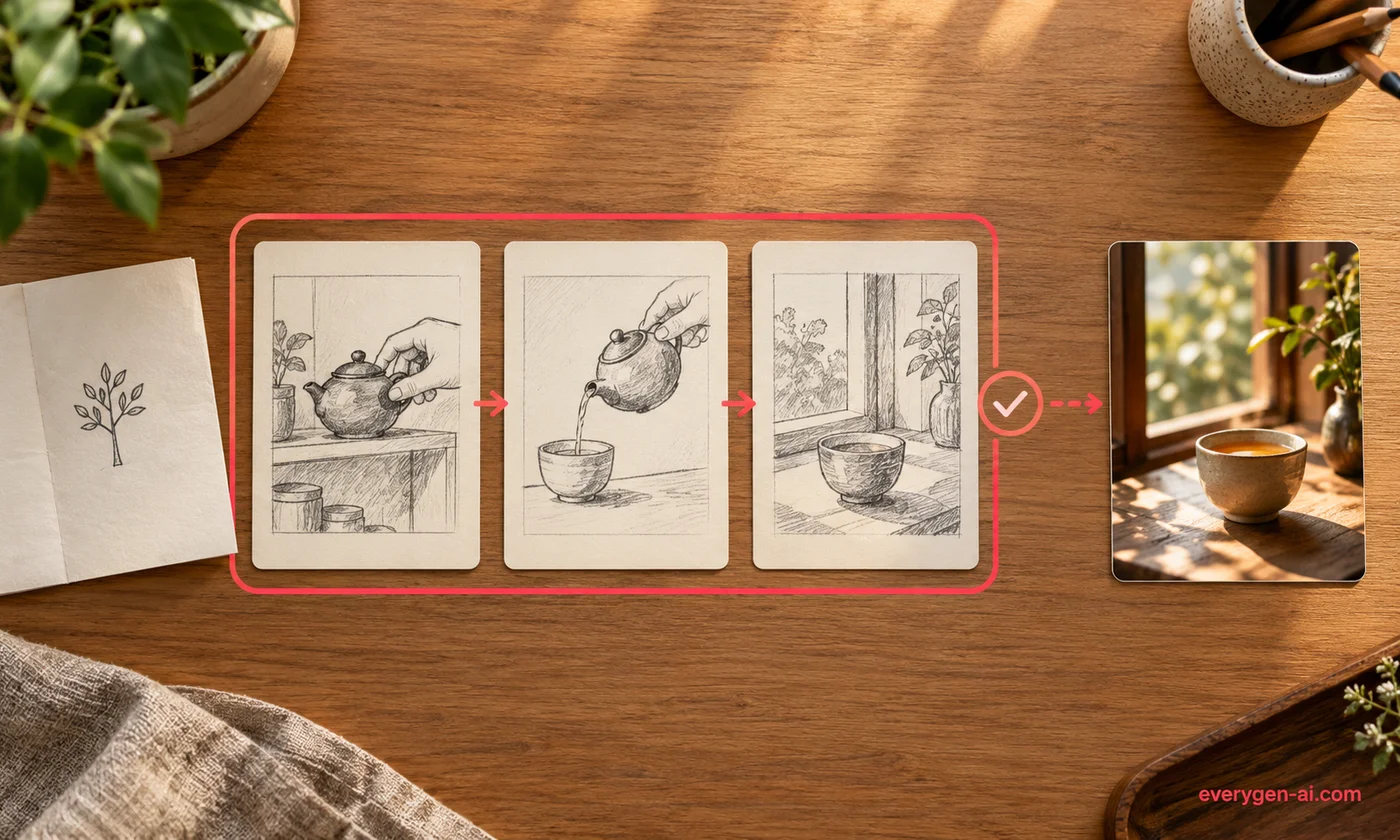
Write a story and a shot list first. Use them to see what every scene needs before spending credits on clips.
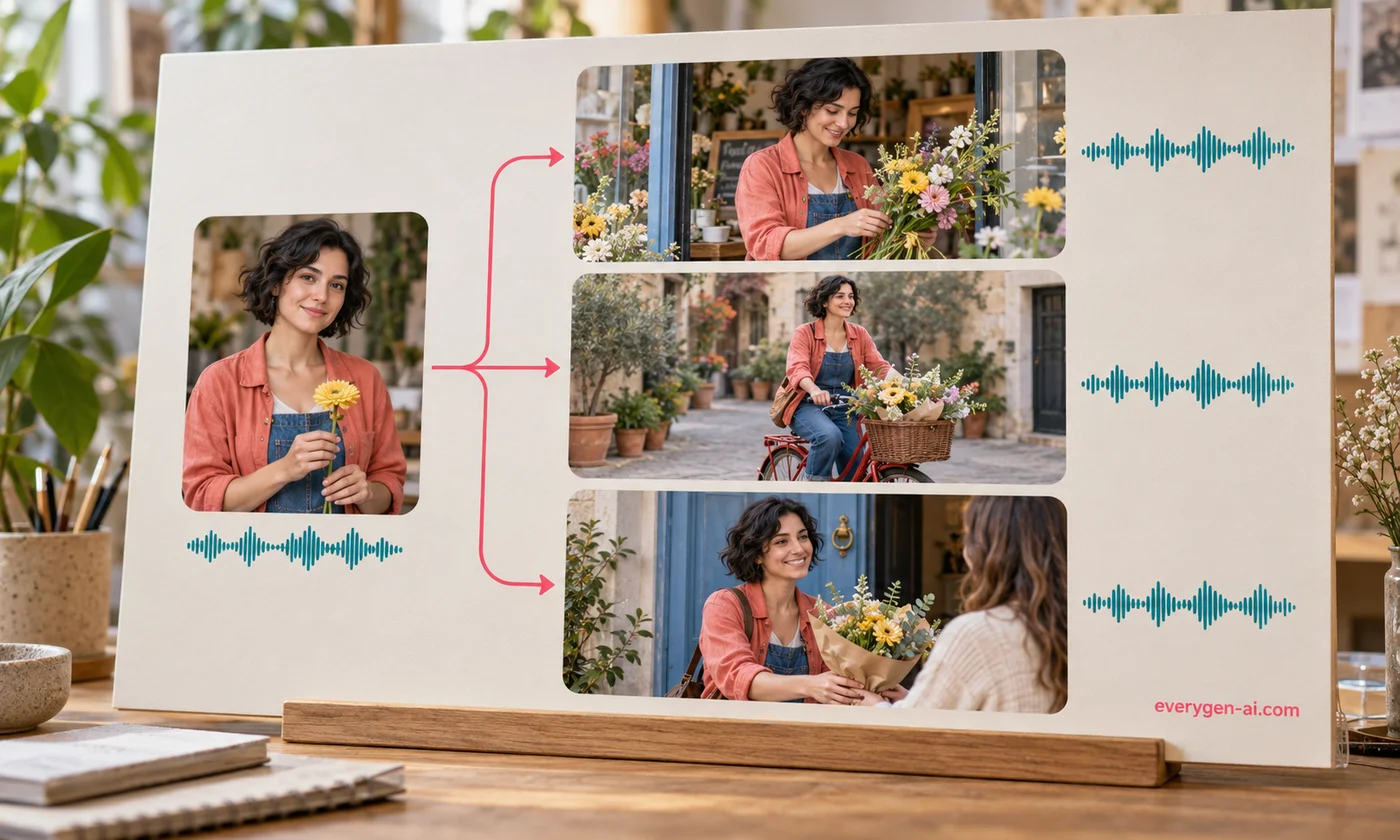
Studio carries the same character and style descriptions into every shot prompt so the video model can follow a common reference brief.
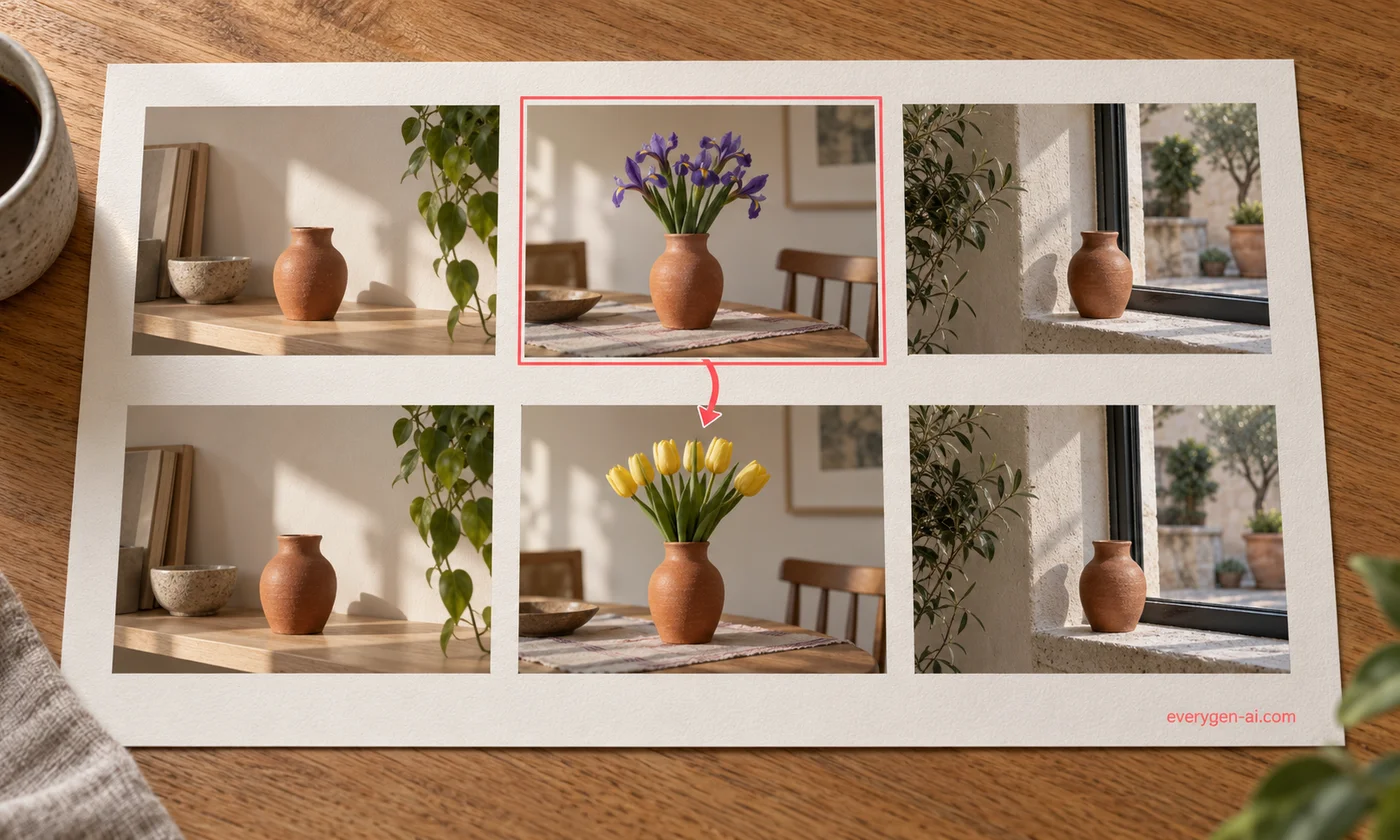
Identify the shot or line you want to change, then describe the revision with enough context to preserve the surrounding scenes.
Five animated story briefs in five visual styles. Select one in the gallery to load its prompt.
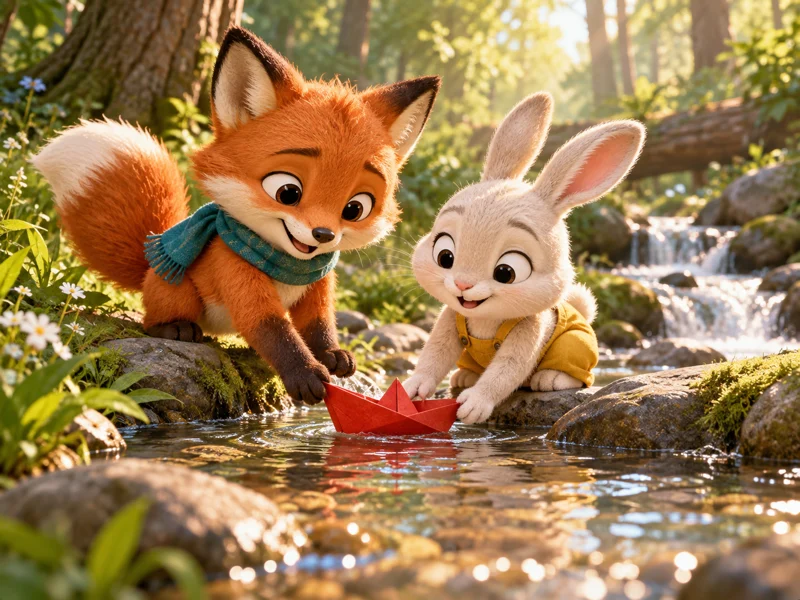
Warm original 3D: two friends help a little paper boat set sail.
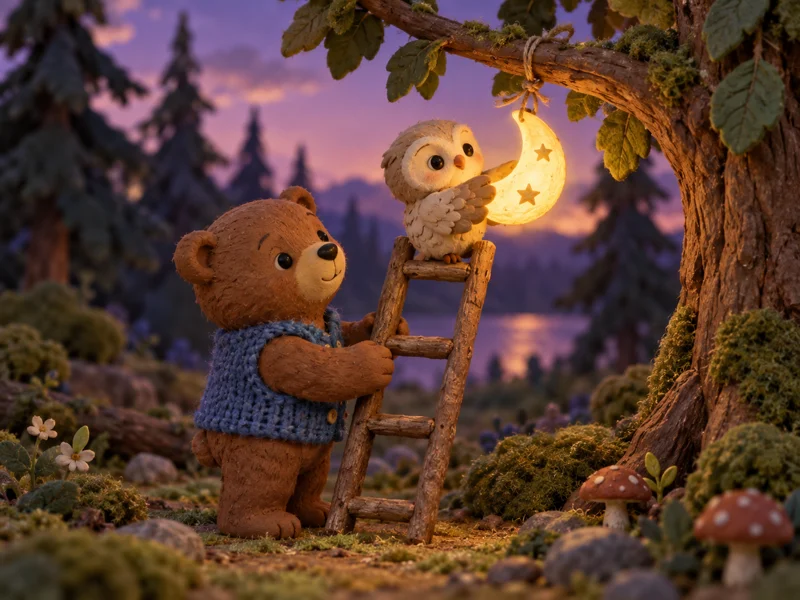
Handmade clay stop-motion: friends build a tiny ladder to send the moon home.
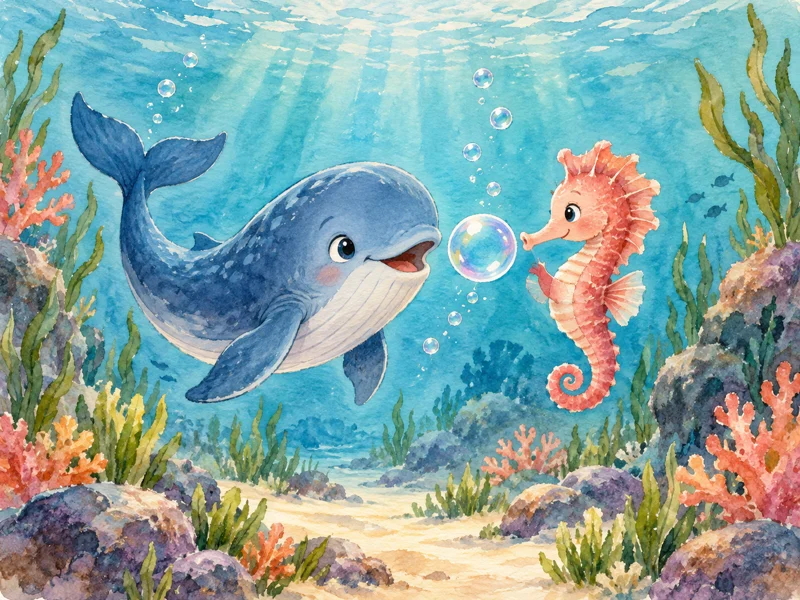
Watercolor picture-book: a shy whale finds its song with a friend.
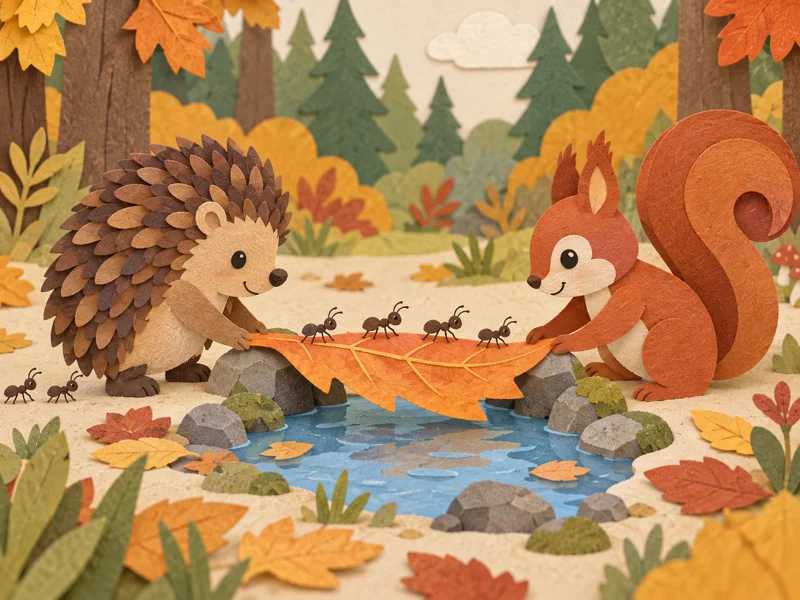
Layered cut-paper: forest friends make a tiny leaf bridge.
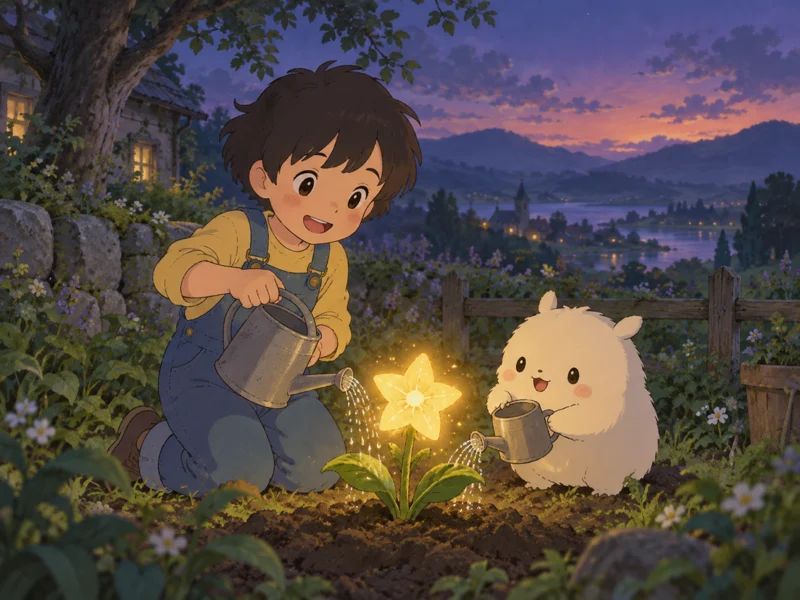
Gentle Japanese hand-drawn: friends tend a shy star flower.
The covers preview each story’s visual style.
Develop ideas that need several shots, recurring characters, or a soundtrack.
Create a gentle story with a simple lesson, a small cast and a distinct animation style.
Explore short scenes with a consistent character design and voice.
Build around an opening hook, clear product details and one memorable benefit.
Plan a setup, a reveal and a final shot that pays off the story.
Use a recurring visual motif and time transitions to the beat.
Paste your script or key points from a brand guide and develop them into a scene-by-scene brief.
Choose the workflow that fits the project you want to make.
| Studio film | Single-clip generator | |
|---|---|---|
| Output | One assembled, multi-scene MP4 | One short video |
| Planning | Story and shot list | Prompt for one shot |
| Continuity | Character references across scenes | Reference for the current shot |
| Sound | Voice, music and effects direction | Audio options depend on the model |
| Revisions | Revise the storyboard in chat before approving | Regenerate a clip with a new prompt |
| Best for | Stories, ads and music videos | Single shots and B-roll |
Story templates and sample films are available to everyone. Paid accounts can plan a film and see its video credit quote before starting generation.
Compare plans and creditsSee how to pick a tool for your project, prepare prompts and reference media, and turn your idea into a video clip.
Read the guideAnswers before you start a story.
The AI Director drafts a storyboard in chat, generates approved shots and combines them into one video.
Yes. The templates and all three example films are available without signing in.
You can start with a sentence, a template, or a pasted script.
The gallery includes one 30-second film and two one-minute stories.
Yes. Selecting any template fills the composer, where you can edit the complete prompt.
Keep the same reference images, identifying details and voice direction throughout the brief.
Confirm a storyboard in Studio to generate a multi-scene film. Use AI Video Generator for a single clip.
The Pricing page lists the site’s credit packs and subscription plans.
Credits for confirmed failures are returned. Retry the failed shots from the storyboard and keep the footage that succeeded.
Choose a template or tell the director your idea in the chat above.