
Every Gen AI Video Generator for Text and Images
Turn a prompt or photo into a short video for a product reveal or social post. Add reference images or audio to guide how the video looks and sounds.
Video history
Loading Studio projects…
Prompt Library

Choose How to Generate Your Video
Start with a prompt or a first frame. Set the aspect ratio, duration, and resolution before you generate.
Text and Reference to Video
Use H3 Omni to turn a written scene into a clip with generated audio. Add reference images when appearance matters, or reference audio for voice and sound style. Describe what the viewer should see and hear.
Image to Video From a First Frame
Start with a product photo or still frame you want the video to open on. Use MiniMax Image to Video for a 3–15 second clip, and add an end frame when the shot needs to land on a particular composition.
Product Reveals and Social Video Ads
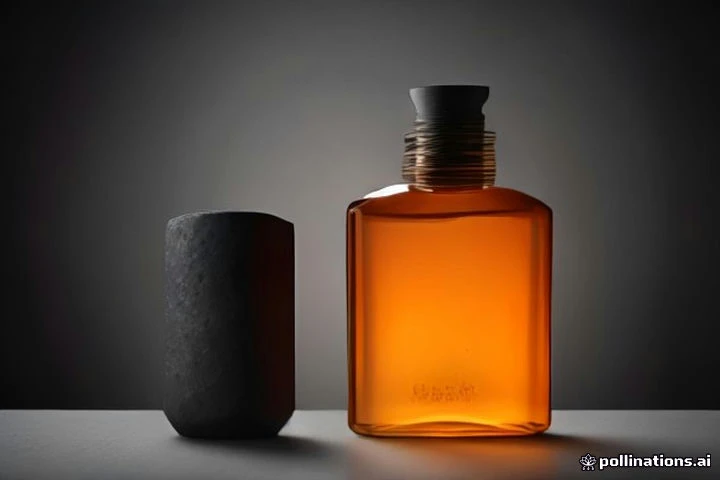
Try one camera move per shot. For a product reveal, keep the bottle still, ask for a slow push-in, and specify that the label and packaging shape should stay fixed. Choose 9:16 for a vertical draft.
AI Video Generator FAQ
Can I make a video from just a text prompt?
Yes. Choose Text & Reference to use H3 Omni. Write what should move, how the camera should move, and any sound that belongs in the shot. Reference images and audio are optional.
How do I animate a photo or control the last frame?
Choose Image to Video and provide a first-frame HTTPS link from a configured media host. Add a second link for the end frame when you want the clip to finish on a particular composition.
Who can generate videos right now?
Video generation is available to invited accounts when the provider is configured. You can try the editor settings and copy a prompt before you have access.